Notice: This WordPress plugin is deprecated and no longer actively supported.

About

About

Documentation Last Updated:

30-Nov-2020

Current Stable Plugin Version:

01.00.03

WordPress Plugin URI:

https://wordpress.org/plugins/sql-reporting-services

Plugin URI:

http://modulemasters.com/SQL-Reporting-Services-for-WordPress

Introduction

Thank you for your interest in the Module Masters SQL Reporting Services plugin for WordPress. This plugin allows you to embed and view Microsoft SQL Server Reporting Services reports within your WordPress site.  


The Module Masters released the initial version of this product on the DotNetNuke platform in 2006. It has been an integral part of many customers websites and we are happy to release the same product on the WordPress platform.


The plugin comes in a free version and a professional version. The free version is licensed as a GPL2 WordPress compliant plugin providing the basic ability to render a reporting services report as HTML within a WordPress site. The professional premium version supports many additional features and provides users with priority support via email.  


We have a road map for future development packed with many exciting features so please subscribe to our website for the latest announcements and releases.


Please see the version comparison for more information.


Copyright (C) 2020, Module Masters, Becker Solutions, Inc.

Getting Help

Getting Help

We are pleased to offer priority support (usually same day response) for our customers of the professional version of the plugin via email.  We may follow up via a phone call or request a web based support session if the need arises.  


For users of the free version, we provide standard support through the forums on the WordPress site.


We encourage you to read through this documentation thoroughly before reaching out for support since we do our best to make sure all aspects of the plugin are covered within this documentation. We welcome feedback and are happy to clarify anywhere we need additional clarification so please don't hesitate to drop us a note if you are confused about anything here.


There are not separate documentation packages for the different versions of the plugin.  This documentation covers all features of the professional version of the plugin. Trying to use a professional version feature within the free version is unsupported and will result in errors.

Change Log

Change Log

The following history outlines the release notes for the plugin.


Version 01.00.03 (30-Nov-2020)

  • Upgraded SDK, tested new version WP 5.5.3


Version 01.00.02 (11-Jul-2019)

  • Upgraded SDK, tested new version WP 5.2.2


Version 01.00.01 (03-Mar-2019)

  • Security fix


Version 01.00.00 (23-Dec-2018)

  • Initial release of the plugin
  • Support for SSRS 2008 - 2017
  • Support for rendering SSRS reports within WordPress as HTML
  • Support for rendering SSRS reports as PDF, Excel & Word (professional version only)
  • Support for passing parameters via the querystring and as shortcode attributes (professional version only)


Version Comparison

Version Comparison

The free version is available from the WordPress plugin repository.  The professional version can be purchased from our website or from plugin settings "upgrade" page from the admin dashboard.


The following grid highlights the features that are currently available from within the plugin comparing the base functionality in the free version with the features available in the professional version.


Free Version

Professional Version

Support for SQL Reporting Services 2008 - 2017

Basic Authentication to SSRS Server

Wordpress Shortcode

Render as HTML

Render as PDF


Render as Excel


Render as Word


Pass Parameters via Querystring


Pass Parameters via Shortcode Attributes


Pass Report Path via Querystring


Priority Support


The professional version supports a variety of purchase options ranging from monthly, yearly and lifetime licenses as well as support for multi-site bundles.  If you are interested in reselling this solution as part of your solution, please contact us to discuss this in further detail.


Terms

Terms

GENERAL

This plugin is licensed under GPL2.  Please see the license text at the following location: http://www.gnu.org/licenses/gpl-2.0.txt

NO WARRANTY

The Software is being delivered to you "AS IS" and Module Masters make no warranty as to its use or performance.


MODULE MASTERS DOES NOT AND CANNOT WARRANT THE PERFORMANCE OR RESULTS YOU MAY OBTAIN BY USING THE SOFTWARE. EXCEPT FOR ANY WARRANTY, CONDITION, REPRESENTATION OR TERM TO THE EXTENT TO WHICH THE SAME CANNOT OR MAY NOT BE EXCLUDED OR LIMITED BY LAW APPLICABLE TO YOU IN YOUR JURISDICTION, MODULE MASTERS MAKES NO WARRANTIES CONDITIONS, REPRESENTATIONS, OR TERMS (EXPRESS OR IMPLIED WHETHER BY STATUTE, COMMON LAW, CUSTOM, USAGE OR OTHERWISE) AS TO ANY MATTER INCLUDING WITHOUT LIMITATION NON-INFRINGEMENT OF THIRD PARTY RIGHTS, MERCHANTABILITY, INTEGRATION, SATISFACTORY QUALITY, OR FITNESS FOR ANY PARTICULAR PURPOSE.

LIMITATION OF LIABILITY

IN NO EVENT WILL MODULE MASTERS BE LIABLE TO YOU FOR ANY DAMAGES, CLAIMS OR COSTS WHATSOEVER OR ANY CONSEQUENTIAL, INDIRECT, INCIDENTAL DAMAGES, OR ANY LOST PROFITS OR LOST SAVINGS OR FOR ANY CLAIM BY ANY THIRD PARTY. THE FOREGOING LIMITATIONS AND EXCLUSIONS APPLY TO THE EXTENT PERMITTED BY APPLICABLE LAW IN YOUR JURISDICTION. MODULE MASTERS AGGREGATE LIABILITY UNDER OR IN CONNECTION WITH THIS AGREEMENT SHALL BE LIMITED TO THE AMOUNT PAID FOR THE SOFTWARE, IF ANY.

MISCELLANEOUS.

Module Masters does not hereby consent to any of your general terms or conditions. The terms and conditions contained in this License Agreement may not be modified except in a writing duly signed by you and Module Masters. This License Agreement shall be governed by the laws of the USA, without regard to conflicts of law provisions, and you hereby consent to the exclusive jurisdiction of the court sitting in Indianapolis, IN.

Installation

Installation

Requirements

IMPORTANT, PLEASE ENSURE THE FOLLOWING

  • Microsoft SQL Server Reporting Services, supported versions 2008 - 2019
  • Basic authentication must be enabled within SQL Reporting services, this is done within the rsreportserver.config file on the report server, for more information, see the following instructions
  • SOAP Extension must be installed and enabled within PHP, if it is not, see the PHP SOAP installation instructions below, if your are not sure, once you activate the plugin, a message will be displayed if it is not detected
  • WordPress 3.7.1, PHP 5


Automated Installation

From within WordPress dashboard:

  1. Go to "Plugins" -> "Add New"
  2. Search for "SQL Reporting Services" by Module Masters
  3. Click "Install"
  4. Click "Activate"
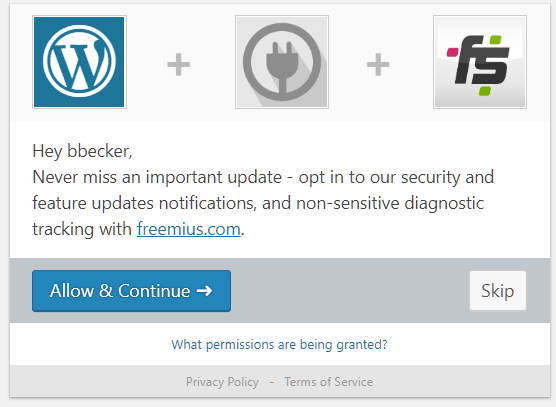
  5. Opt-In, this is optional but recommended as it verifies your installation.  The following is what the opt in screen looks like.

  1. Go to "Settings"  -> "SQL Reporting Services", register your report server (e.g. http://server/reportserver) and enter your active directory credentials to access the server.  It is recommended that the user account that is used have the "Content Manager" role within the reporting services manager.
  2. From a blog entry or page, add the ssrs shortcode (e.g. [ssrs reportpath="/TestReports/ParmTest" height="1200px" width="100%"])

Manual Installation

  1. Instead of the automatic installation above, you can download and unzip the plugin to your computer
  2. Upload the "sql-reporting-services" folder that was extracted from the zip file and copy to the /wp-content/plugins directory of your WordPress site.
  3. Activate the plugin through the "Plugins" page
  4. Opt-In, this is optional but recommended as it verifies your installation (see screenshot of the opt in screen above)
  5. Go to "Settings"  -> "SQL Reporting Services", register your report server (e.g. http://server/reportserver) and enter your active directory credentials to access the server.  It is recommended that the user account that is used have the "Content Manager" role within the reporting services manager.
  6. From a blog entry or page within your WordPress site, add the ssrs shortcode (e.g. [ssrs reportpath="/TestReports/ParmTest" height="1200px" width="100%"])

PHP SOAP Extension

This plugin makes calls to the SSRS server using the reporting services API which leverages SOAP web service calls.  In order for these calls to be able to be made from the PHP engine which powers WordPress, this extension must be installed.  


The plugin will throw an error message shown below if it detects that this is missing so if you aren't sure, simply do the installation and you'll see a notification if you need to enable this. If so, don't fret, it is easy!


For Windows

1. Find extension=php_soap.dll in php.ini and remove the semicolon(;)

2. Restart your Server


For Linux (Ubuntu)

For PHP7.x

sudo apt-get install php7.0-soap

sudo systemctl restart apache2


For nginx

sudo apt-get install php7.0-soap

sudo systemctl restart nginx


For PHP5

apt-get install php-soap


Settings

Settings

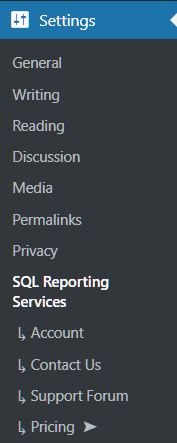
Once the module is installed, you can access the settings for the plugin to configure the report server.  The settings can be accessed from the site admin section, click the "Settings" menu and then the "SQL Reporting Services" option shown in the following screenshot.


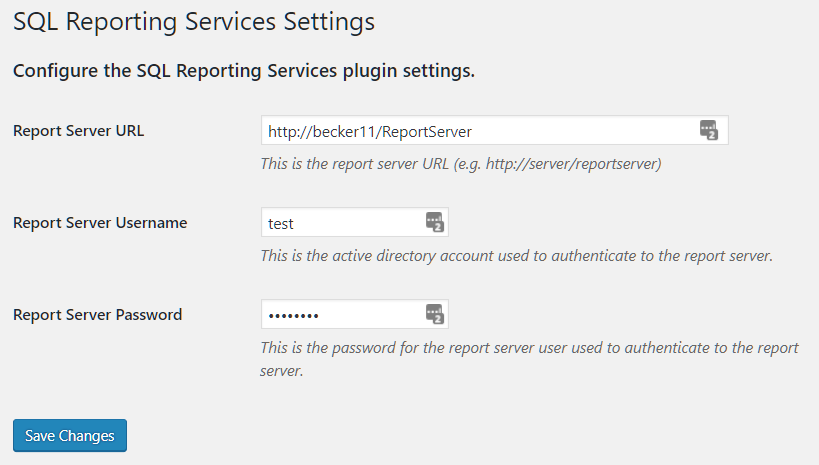
From there, you will be presented with the following screen where you can enter the report server connection information as shown in the following screenshot:


Field

Description

Report Server URL

This is the URL to the report server where the API will be accessed to interact with the report server.  This is not the report manager URL, this is the report server URL which can be found from the SQL Server Reporting Services Configuration screen if you are unsure what it is.

Report Server Username

This is the active directory user that will be used to access the report server API. This is a user that should be setup with the role of "Content Manager" within the Report Manager at the highest level.

Report Server Password

This is the password for the active directory user that will be used to access the report server API.


Once the settings are saved, click the "Save Changes" button. You are now ready to use the "ssrs" shortcode to display reports within WordPress!


You can view your license information from the "account" menu.  You can also upgrade your license from the "Pricing" screen.


Shortcode Usage

Shortcode Usage

Once the report server information has been entered within the settings, reports can be displayed by using the "ssrs" shortcode and setting some attributes as outlined in this section.


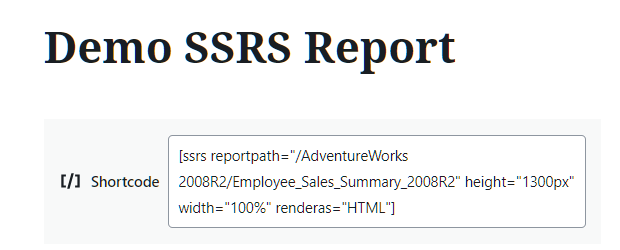
The shortcode can be used within blog entries and within pages.  An example of a shortcode is shown entered in edit mode of a page below:


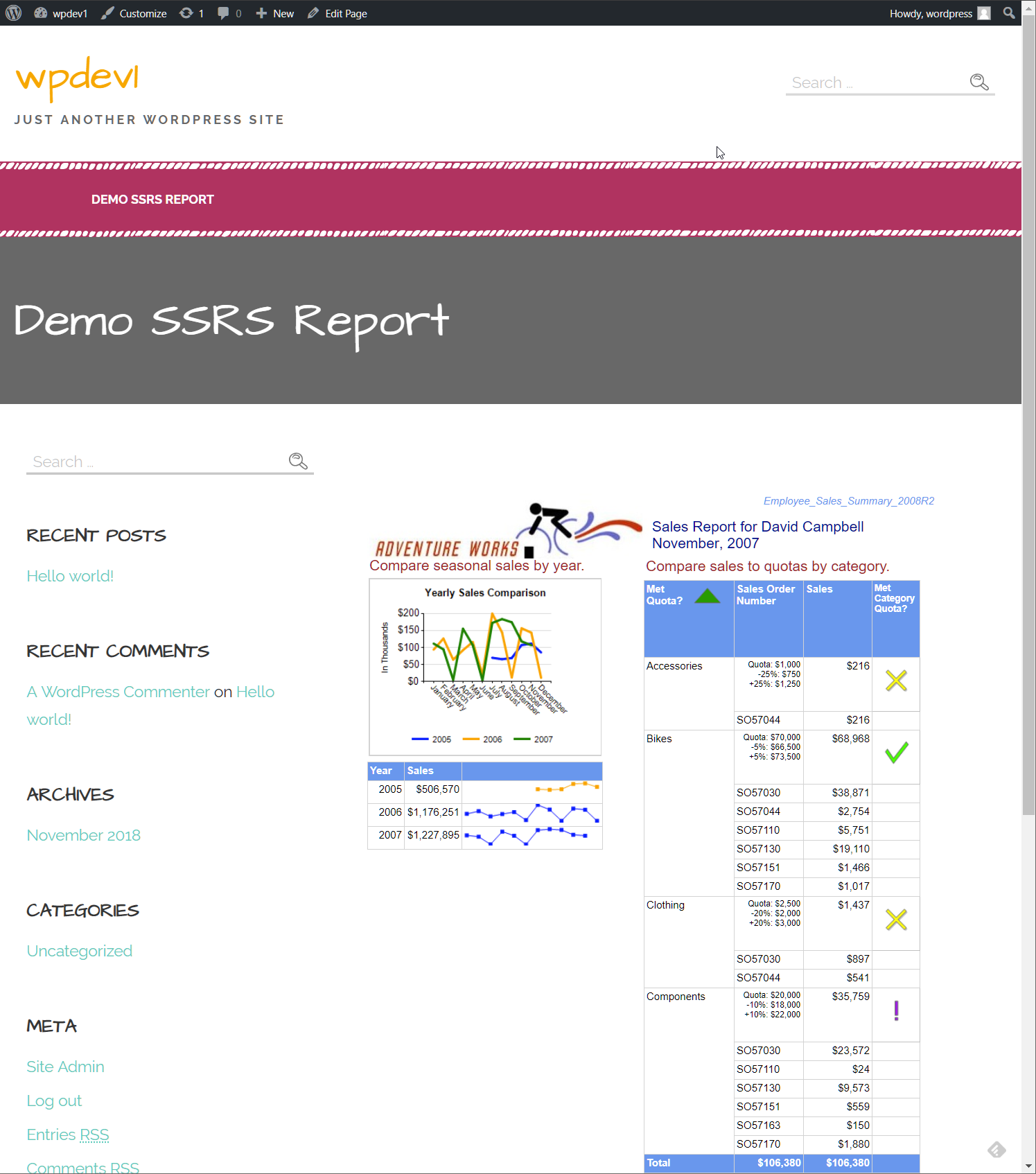
The rendered output of the above shortcode is shown when viewing the page:


Shortcode Attributes

The shortcode is entered between brackets with attributes following it with the attribute value shown in double quotes, here is an example:


[ssrs reportpath="/Folder/Report Name" renderas="HTML" width="100%" height="800px"]


Field

Description

reportpath

Required in free version, Optional in professional version, no default


The report path should include the folder and report name to the report that is to be entered using forward slashes (e.g. "/folder/report name").


If the reportpath is not specified, a querystring variable "reportpath" will be expected so that a report can be rendered.  The free version ignores the querystring so this attribute must exist as an attribute of the shortcode.

renderas

Optional,  default "HTML"


The renderas instructs the plugin how to render the report.  The acceptable values are:

HTML - Default value if not specified.  Shows the report output within an iframe on the page the shortcode is entered.

PDF - The report will be auto exported at runtime to a PDF document.  This format is only available in the professional version.

WORD - The report will be auto exported at runtime to a Microsoft Word document.  This format is only available in the professional version.

EXCEL - The report will be auto exported at runtime to a Microsoft Excel document.  This format is only available in the professional version.

width

Optional, default "100%"


The width of the iframe the report is rendered in. Valid values are in pixels or percentage, e.g. "800px" or "100%".  The theme CSS that is used will also have some impact on how things are rendered here, the display works best with themes that support a full page width for content.

height

Optional, default "800px"


The width of the iframe the report is rendered in.  Valid values are in pixels, e.g. "800px".

parameters

Optional, no default


This attribute is only available in the professional version.  It is possible to set report parameter values based on this attribute.  The syntax is:

parameter name=value.  Multiple parameters can be separated by a semicolon.  The entire parameter string should enclosed in double quotes.  Here is an example shortcode entry that is setting a value for two report parameters:


[ssrs reportpath="/TestReports/ParmTest" height="1200px" width="100%" renderas="HTML" parameters="ReportParameter1=this is a test;Report Parameter 2=1/2/2013;"]


The parameter names are not case sensitive and should match the name entered within the RDL.


Parameters are set in this attribute will override the parameters that are passed in via the querystring.

Shortcode Errors

There are some errors that may be displayed where the shortcode is used.  The following are some examples.


In the event that the reportpath attribute is not specified, the following error message will be displayed.


The upgrade message will be displayed in the free version of the plugin if options only available in the professional version are detected.  For example, the renderas attribute of "HTML" is the only supported attribute value, if any other value is detected, this error will be displayed.


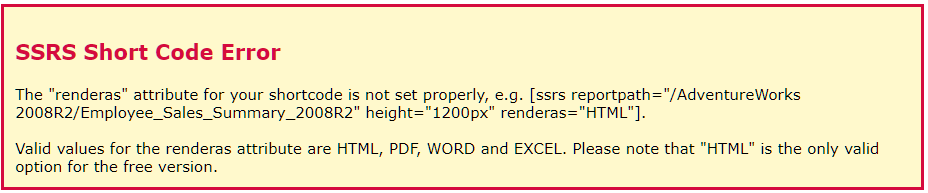
In the event an invalid renderas attribute is supplied that is not a valid value, the following error message will be displayed:


In the event that the report server is not accessible due to connectivity issues or authentication problems, the following message will be displayed.


In the event that the report path that is entered is incorrect or not accessible, the following message will be displayed.


There may be other error scenarios that are not covered here, please use the "Contact" page in the settings menu to provide as much detail as possible if you encounter any errors not discussed here.

QueryString Usage

QueryString Usage

The professional version supports supplying the "reportpath" and setting report parameters via the querystring.  This allows links from other pages be created and the plugin to react based on the values that are seen in the querystring.


ReportPath via QueryString

To pass the "reportpath" via the querystring, the shortcode must not have the "reportpath" attribute specified and then you simply add a querystring key and value to the URL of the page where the ssrs shortcode is in use. If the shortcode has the "reportpath" specified, it will override any value passed in via the querystring.


An example shortcode and links look like this:


The shortcode looks like this:

[ssrs height="1300px" width="100%" ]


The querystring looks like this:

http://becker11:88/wpdev1/sample-page/?reportpath=/TestReports/Report%20Server%20Info%20Linked%20Report


This also non-encoded version works as well:

http://becker11:88/wpdev1/sample-page/?reportpath=/TestReports/Report Server Info Linked Report


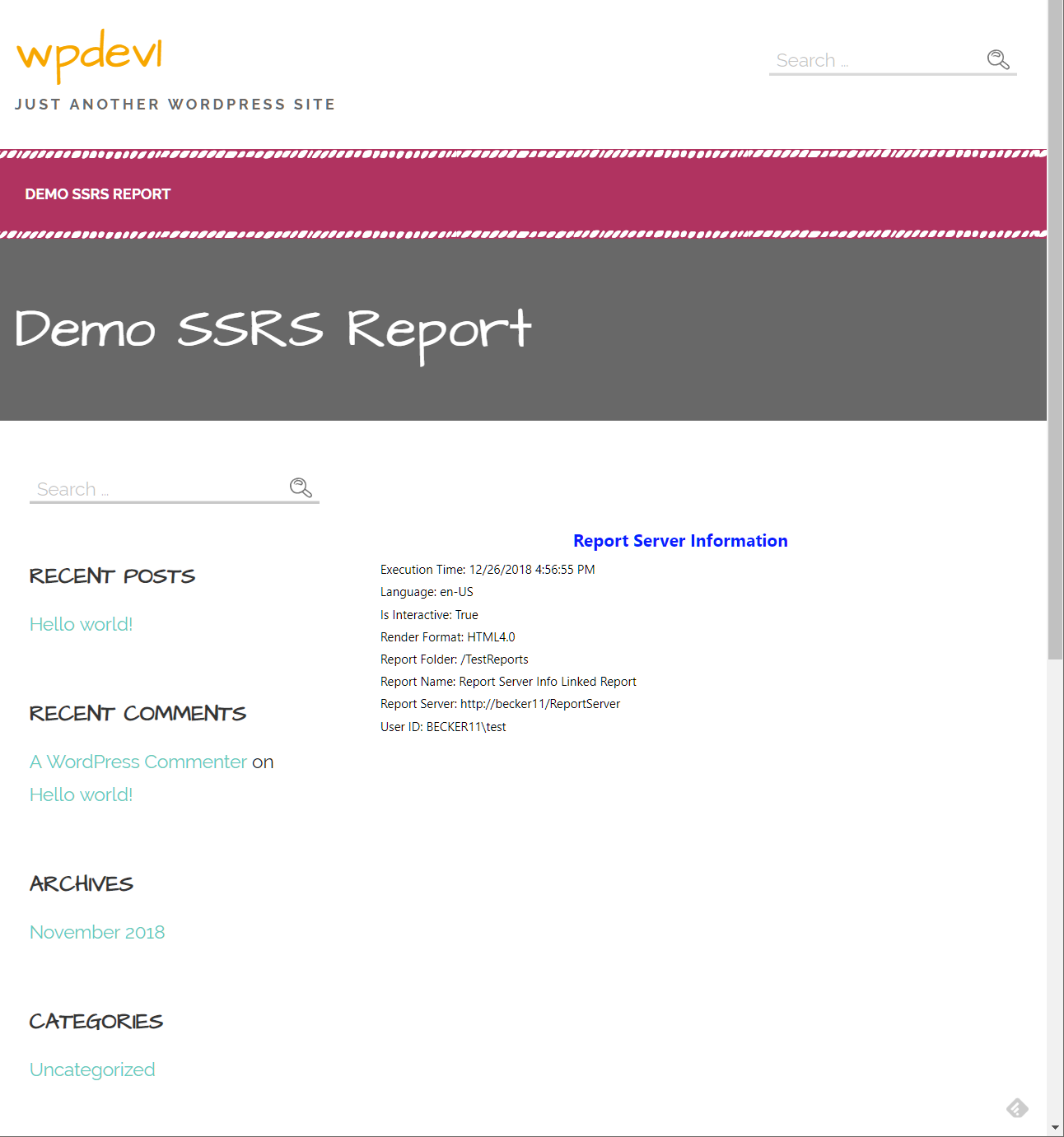
This renders the Report Server Info Linked Report as shown here:


ReportParameters via QueryString

The professional version supports passing report parameters via the querystring.  The name of the parameter can be provided in the querystring as a key and the a related value passed in.  The parameter key is not case sensitive and any number of parameters can be specified in the querystring.  It is important to note that the parameter values that are specified in the querystring will be overridden by parameter values specified in the shortcode "parameters" attribute so make sure the values are not set in the shortcode if you want them to be set by the querystring.


The following example querystring will pass in a parameter value "This is cool!" to the ReportParameter1 in the following example.  


The shortcode looks like this:

[ssrs reportpath="/testreports/parmtest" height="1300px" width="100%"]


The querystring looks like this:

http://becker11:88/wpdev1/sample-page/?ReportParameter1=This%20is%20cool!


The non-encoded version works as well:

http://becker11:88/wpdev1/sample-page/?ReportParameter1=This is cool!


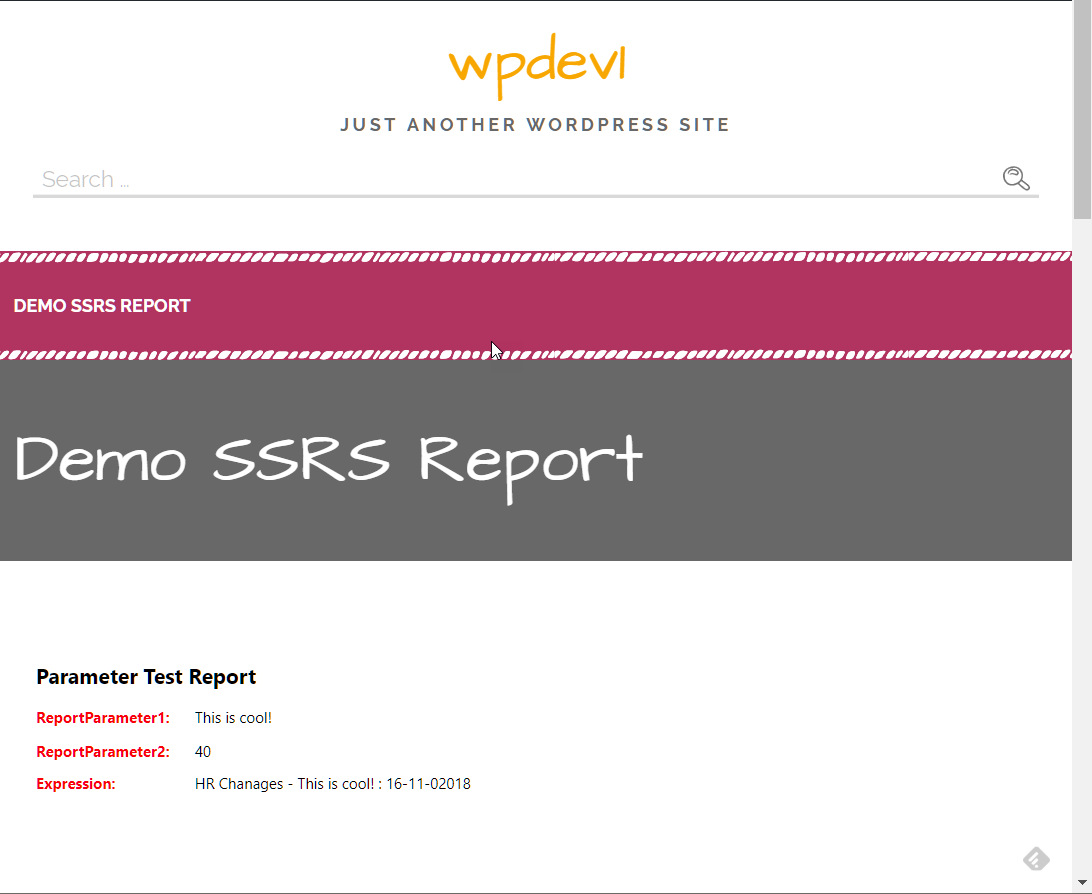
This renders the test report as shown here:


Known Issues

Known Issues

We are aware of a few caveats and limitations that currently exist and we are in the process of working to eliminate these in future releases of the plugin. We will keep this list updated as we progress so that only the current limitations or points of importance will be listed in the following table. If you stumble upon a scenario we do not have listed, please shoot us an email with the details so we can try to confirm and replicate any other incompatibilities or issues.


Issue

Work Around

Drilling / expanding / visibility actions do not work properly

Disable any report drilling and visibility actions, these require a post back to execute and this feature is currently not working with the current design.  We are actively working at a method to correct this limitation.

Sorting actions do not work properly

Disable any sorting actions, these require a post back to execute and this feature is currently not working with the current design.  We are actively working at a method to correct this limitation.

Hyperlinks within RDLs will not work

Disable any report hyper link actions, these link from within the iframe the content is displayed within.  We are actively working at a method to correct this limitation.

Images will be forced to autosize to the image size

The image scaling property is ignored so you must resize any images used within RDLs and set the size property "autosize"

Subreports may overlap when rendered

Set the property on the subreport for KeepTogether to "True"

Data source credential prompting does not work

Data source credentials used by reports must be saved with the data source since pass through authentication is not possible.

Paging rendering as HTML

When rendering reports as HTML, you can set the interactive size properties of the report to a height that should accommodate all of your pages in the report to allow it to render properly and show all the pages within the iframe window.